
FAQs Bill Pay Discovery
Important information about Bill Pay Discovery
FAQs for Bill Pay Discovery
Q: How does Bill Discovery work?
A: Bill Discovery finds your bills for you for a faster more accurate setup. You can access Bill Discovery in Bill Pay via the "Add a Company or Person" section in Bill Pay on the new tab “Find My Bills”.
Check one or both boxes next to “biller network” and “your credit report”, then select “Find My Bills” to provide Bill Pay with your initial consent to find your bills within Online Bill Pay.
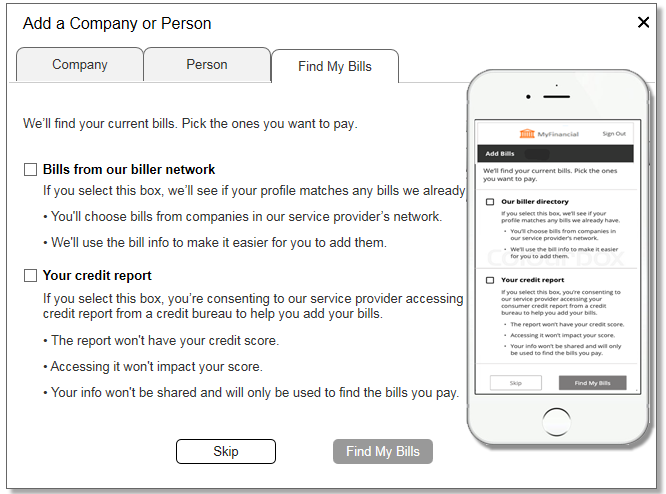
Note: Selecting to access consumer credit report will not affect your credit score.
Q: How do I select bills?
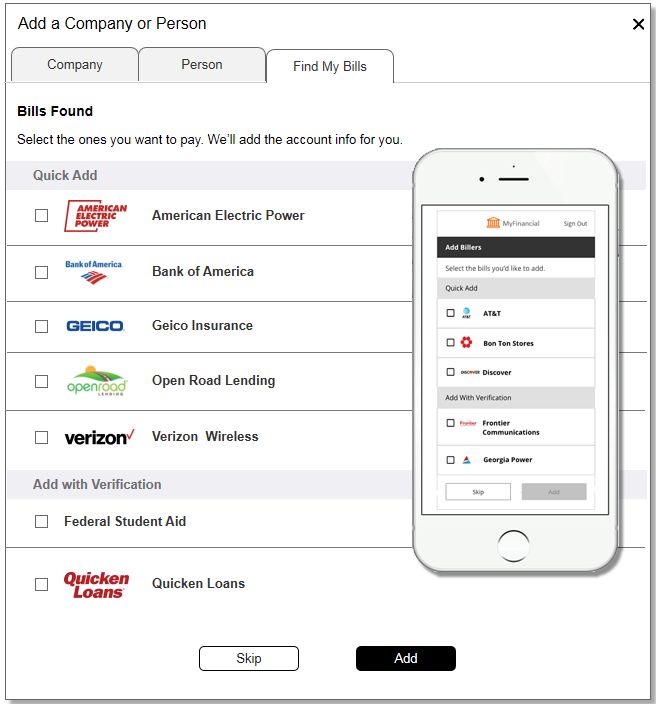
A: After providing consent, you are then provided with a list of bills found.
You can select which bills from the list you would like to add to your Online Bill Pay account and simply select “Add”.
Q: What happens Bill Discovery didn't find or can't add a biller?
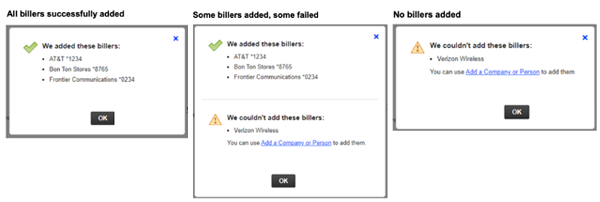
A: Bill Discovery will let you know which billers were added to your account. If a biller cannot be added, you can set up the biller manually using the "Add a Company or Person" options. See sample messages below.
Q: How do the bills I add appear in Bill Pay?
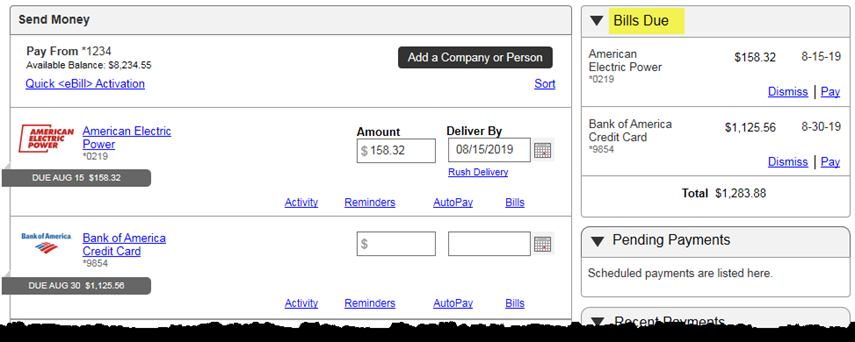
A: Newly selected bills will show up within your Bill Pay account with full billing details and the opportunity to set up AutoPay or eBill.
These bills will also show up under the “Bills Due” section. You can dismiss or pay from this additional section.
Q: Will I get reminders and alerts on my bills?
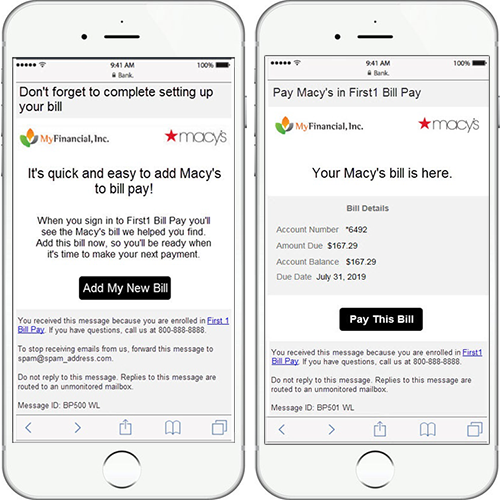
A: Yes, the system will search for additional bill billing accounts on an ongoing basis. If new bills are found, you will be sent an email encouraging you to add your new bill!
Additionally, you may receive a “next billing statement” email with the full billing details and prompt to pay the bill, which is connected to your Bill Pay account.